We’ve been wanting this for a while: live broadcast coverage for in-person word game tournaments, right on Woogles. Think chess broadcasts, where you can follow annotated games move by move as they happen on the boards across the room. That’s now possible here.
If you’ve ever watched a major chess event on Lichess or Chess.com and thought “I wish we had something like that for crossword board games such as SCRABBLE Brand Crossword Game” - well, here it is.
What’s a Broadcast?
A broadcast connects Woogles to an external tournament feed (currently TSH format — TSH is the most widely used tournament management software) and lets annotators claim games in real time. As they input moves, viewers watching online see the board update live. It’s designed for in-person tournaments that want to give a remote audience a real-time window into what’s happening at the tables.
We will support broadcasts for native Woogles IRL tournaments as well in the future.
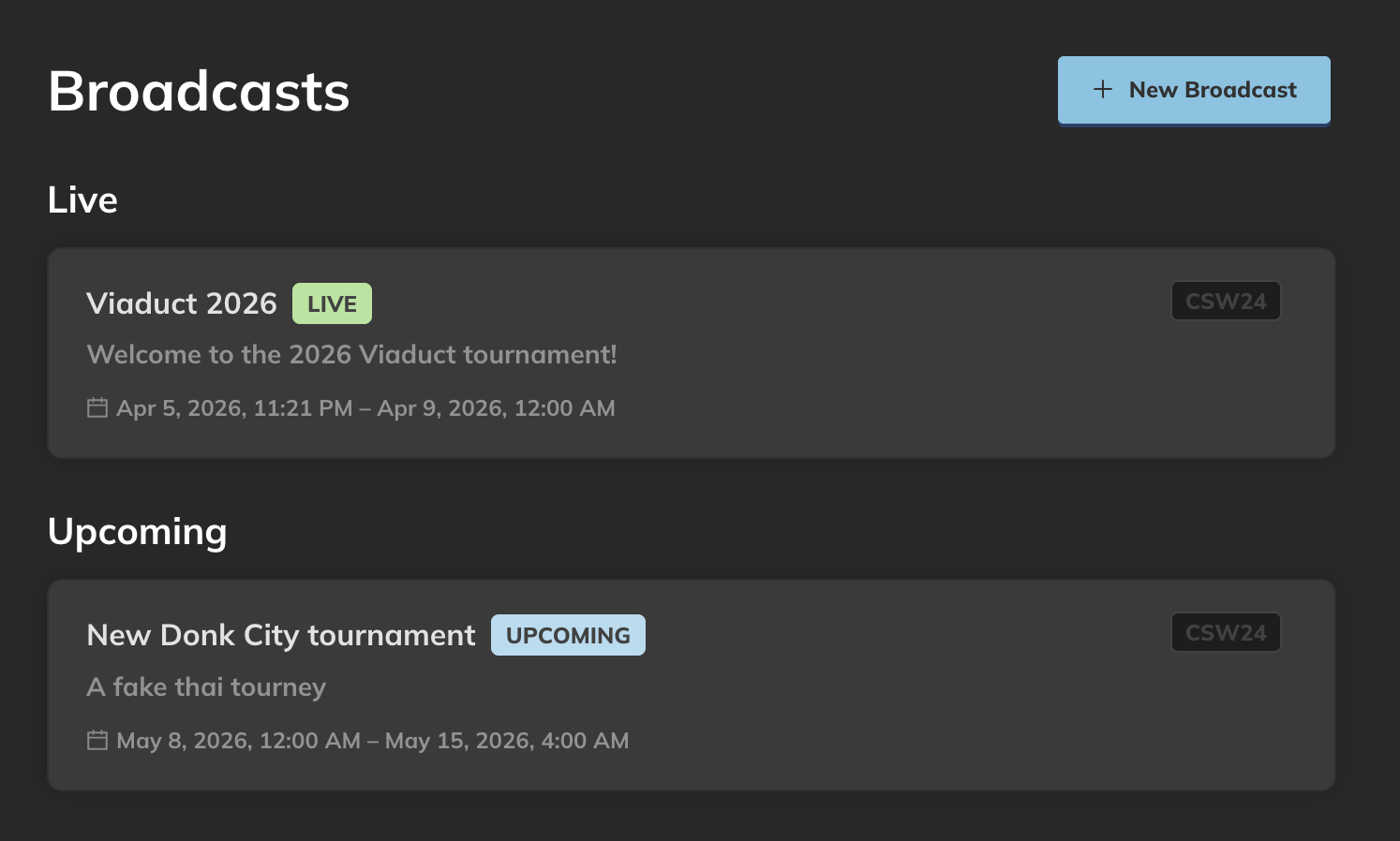
Creating a Broadcast
You’ll need the Broadcast Creator user role. Talk to us if you want to create a broadcast for an event. Then head to /broadcasts/new and fill in:
- Slug - a short URL-friendly ID (e.g.
nsc2026) - Name and description - what shows up publicly
- Feed URL - a link to your TSH
tourney.jsJSON file - Poll interval - how often Woogles re-fetches from the feed
- Poll start/end times - when the tournament begins and ends
- Game defaults - lexicon, board layout, and other settings for annotated games
Once created, the system starts polling automatically. New rounds, pairings, and player names flow in from the feed as the tournament progresses.
Three Roles: Directors, Annotators, Viewers
Each type of participant has a distinct experience.
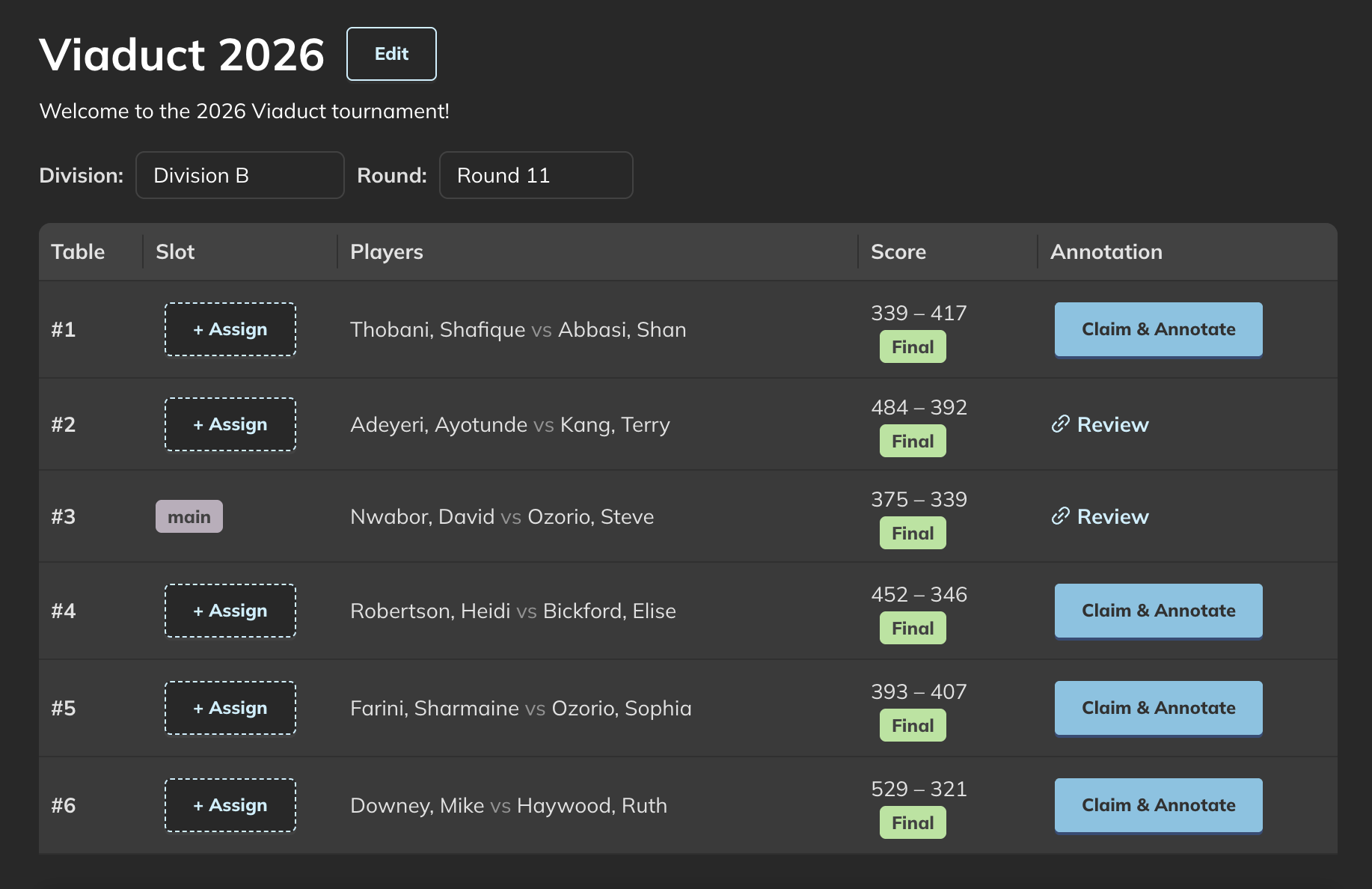
Directors
Directors manage the broadcast behind the scenes. They can add or remove annotators and other directors, create and manage OBS slots (more on those below), force-refresh the feed if something looks stale, and reassign slot targets when a new round starts. If you’re running the stream, you’re a director.
Annotators
Annotators are the people at the tournament entering moves. The workflow is simple:
- Go to the broadcast page
- Select your division and round
- Click Claim & Annotate on an unclaimed game
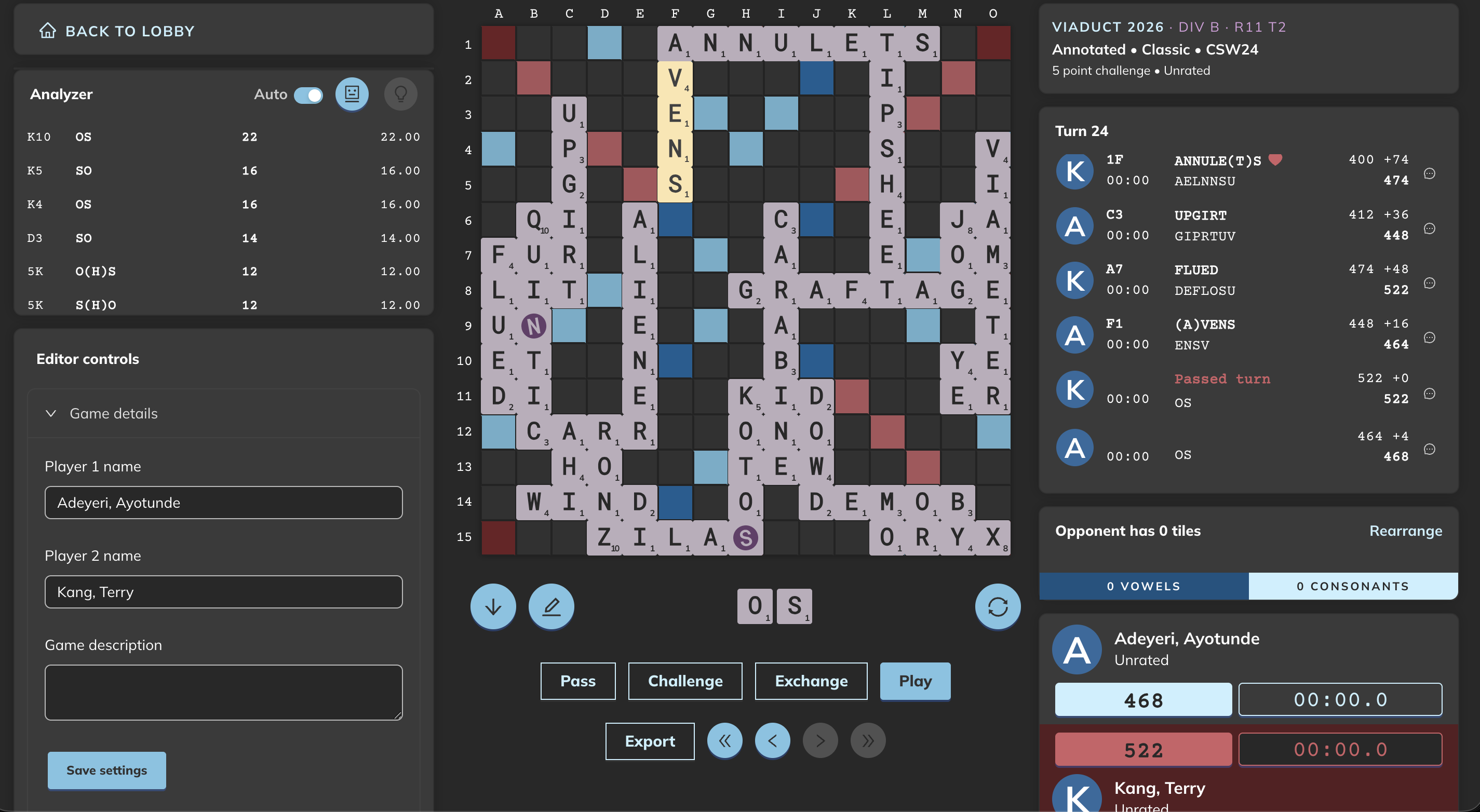
- You’re taken straight into the editor to input moves as they’re played
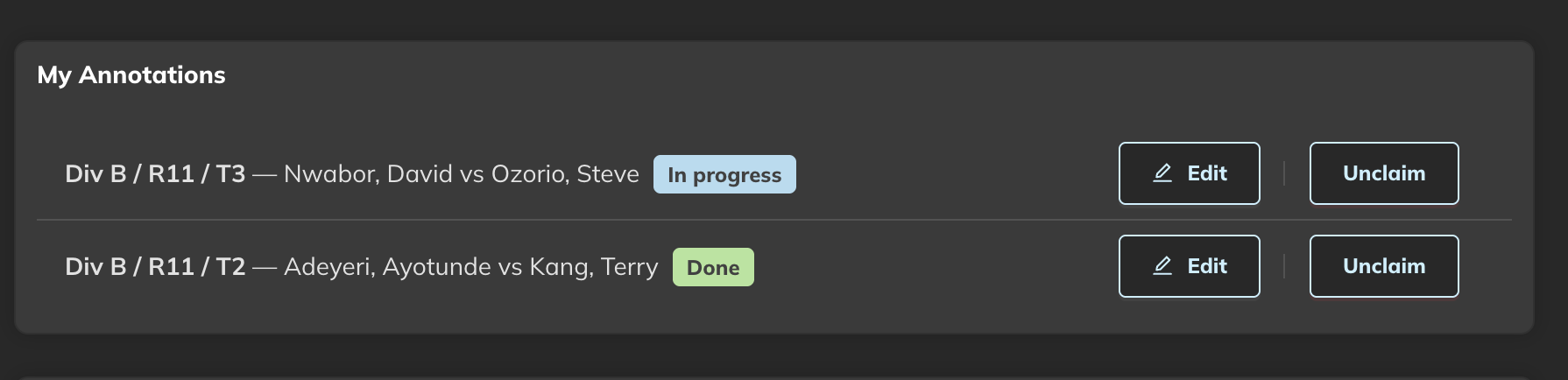
A “My Annotations” panel on the broadcast page shows all the games you’ve claimed, so you can jump between tables if needed. When a round ends, you unclaim your game and claim a new one for the next round.
Viewers
Viewers just show up and watch. No login required, no special permissions. They can see which games are currently being annotated and click through to follow any of them live. The experience is similar to watching a regular Woogles game - you see the board, racks where visible, and the move history updating in real time.
OBS Integration
This is where things get genuinely useful for live tournament streamers. Directors can create named slots - think of a slot as a persistent camera position pointing at a specific table.
Each slot generates a set of stable URLs you paste into OBS as browser sources. These URLs never change, even when the game at that table turns over between rounds. When a round ends, the director reassigns the slot to point at the new game at that table, and OBS picks it up automatically. No URL swaps, no interrupting your stream.
Setting Up Browser Sources in OBS
Each piece of game data is a separate browser source in OBS. The general workflow:
- In OBS, add a Browser source to your scene
- Navigate to the game or broadcast slot page on Woogles
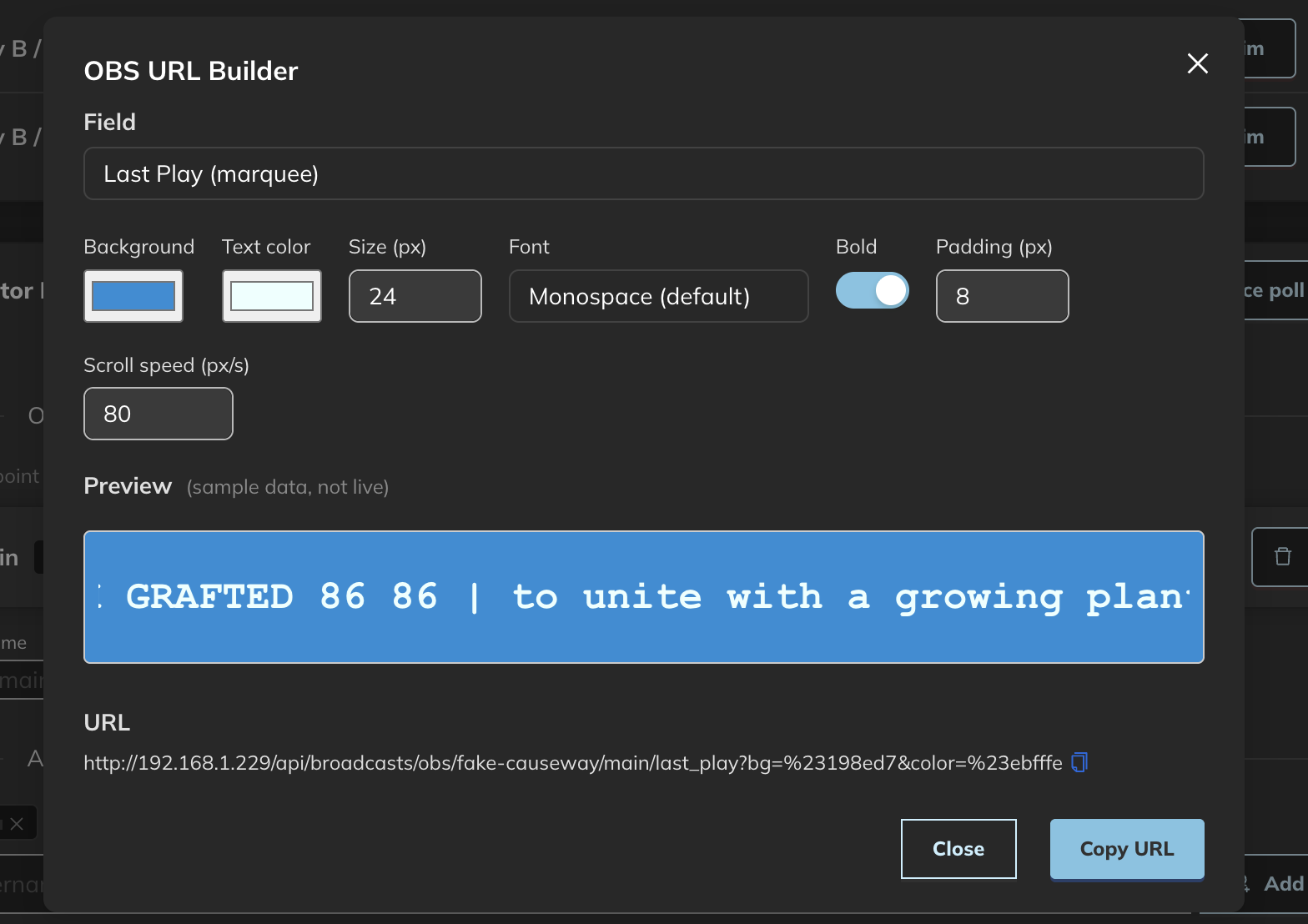
- Click OBS URLs to open the URL builder
- Pick a field, adjust the styling to match your stream, then copy the generated URL
- Paste it into the OBS browser source URL field
- Repeat for each field you want to overlay
The sources update live via server-sent events — no polling, no page refresh. As the annotator enters moves, every browser source connected to that game updates automatically within a second or two.
A typical stream setup might have three or four sources per table: combined score, unseen tile count, last play marquee, and optionally a blank-word source.
Available Sources
Combined score — Both players’ scores displayed side by side (e.g., 045 - 032), zero-padded to three digits. Good for a single score graphic centered above or below the board camera.
Player 1 / Player 2 score — Each player’s score individually, right-justified to three characters. Use these instead of the combined score if you want separate graphics positioned near each player’s camera or nameplate.
Unseen tiles — Every tile not currently visible to the annotator: the bag plus the opponent’s rack, sorted alphabetically with blanks shown as ?. Example: AAA BB D E FF GGG ?. This is the classic “bag” display — gives viewers a sense of what’s still out there without revealing the current player’s rack.
Unseen tile count — A two-line numeric breakdown of the unseen tiles: total count on the first line, vowel and consonant split on the second (e.g., 28 tiles / 10 vowels | 17 consonants). Useful as a compact sidebar element when you don’t want to show the actual letters.
Last play (marquee) — A scrolling ticker showing the most recent move: player name, board position, word, score for the play, and running total. If the word is only valid in one major lexicon it gets a # (CSW-only) or $ (NWL-only) symbol, followed by the word’s definition. Exchanges, passes, and challenged-off plays are handled too. You can control scroll speed in the builder.
Blank word 1 / Blank word 2 — The first and second words played with a blank tile in the game. The blank-designated letter is shown lowercase, everything else uppercase (e.g., CoSTARS), and the blank letter renders in whatever highlight color you choose. These are useful for calling out blank plays without needing a separate graphic.
Visual Styling
You can dial in the look to match your stream design:
- Background and text color
- Font choice (monospace, serif, sans-serif, Inter, Arial)
- Size, padding, and font weight
- Marquee scroll speed (for last play) or tile wrap width (for unseen tiles)
So if your stream uses a dark background with a specific font, you can match it without any extra CSS work.
Annotator Alias URLs
There’s a third kind of OBS URL that’s useful for annotators who stream regularly: a user alias URL tied to your Woogles username.
/api/annotations/obs/user/<your-username>/<field>
Paste it into OBS once and never touch it again. It automatically resolves to whatever game you’re currently annotating — across rounds, across tournaments. When you move to a new game, OBS picks it up without any intervention.
This is different from slots, which are director-managed positions tied to a table. Your alias URL is personal — it follows you specifically. If you’re a regular annotator and a viewer or fellow streamer wants to always see your games, they can subscribe to your alias URL rather than relying on a director to keep a slot pointed at you.
The OBS URL builder now shows a Source dropdown when multiple contexts are available — “This game”, the broadcast slot (if you’re inside one), and “My alias”. Inside a broadcast, the slot is selected by default. Outside a broadcast, it defaults to the current game. You can switch between them at any time without closing the builder.
A Typical Tournament Workflow
Here’s how a full-day tournament might use broadcasts:
- Before the event: create the broadcast with your TSH feed URL, then add annotators and directors
- Directors create OBS slots and paste the generated URLs into their OBS scene
- Round 1 starts: annotators claim games and begin entering moves; viewers start watching
- Round ends: directors reassign slots to the new pairings; annotators unclaim and pick up new games
- Repeat steps 3-4 for every round
The whole thing is designed so directors and annotators can coordinate quickly between rounds without the stream going down or OBS needing to be reconfigured.
Try It
If you’re running an in-person tournament and want to set up a broadcast, we’d love to help. Drop by our Discord or email us at woogles@woogles.io . If you’ve used TSH before and have a live feed URL, you’re most of the way there already.